Your first button
Creating a button
Click + in the header bar (or press Ctrl+N) to open the button editor.
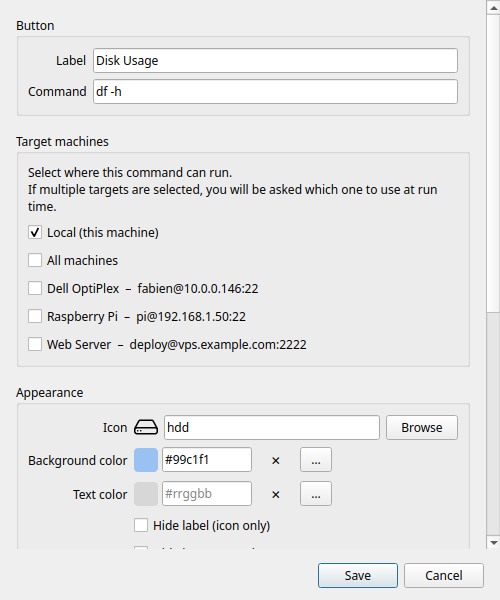
Required fields
Name — The label shown on the button.
Command — The shell command to execute. Examples:
df -h                        # disk usage
ping -c 4 8.8.8.8            # network test
sudo systemctl restart nginx # restart a service
Optional fields
| Field | Description |
|---|---|
| Category | Groups buttons under a tab in the header bar |
| Icon | Choose from hundreds of built-in icons |
| Color | Background color of the button tile |
| Text color | Color of the button label |
| Tooltip | Custom text shown on hover (defaults to the command) |
| Confirm before running | Shows a confirmation dialog before executing |
| Output mode | Silent / Show output / Open in terminal |
| Hide label | Show icon only |
| Hide icon | Show label only |
Output modes
Silent — The command runs in the background. A small toast notification confirms success or failure.
Show output — A dialog opens with the full stdout / stderr after the command finishes. Useful for commands that return information (disk usage, git log…).
Open in terminal — The command runs in your system terminal emulator. Use this for interactive commands (top, htop, vim…).
!!! tip The Show output mode also opens automatically when a command fails, regardless of the mode selected.
Editing and deleting
Right-click any button to open the context menu:
- Edit — reopen the button editor
- Duplicate — create a copy
- Move to category — reassign quickly
- Delete — permanently remove the button
Reordering
Drag and drop buttons to reorder them within the grid.