Buttons
Default buttons
RemoteX ships with a set of ready-to-use buttons seeded on first launch, organised in categories such as Hardware, Network, Development and a platform Essentials group. They are visible, executable and deletable on the free tier.
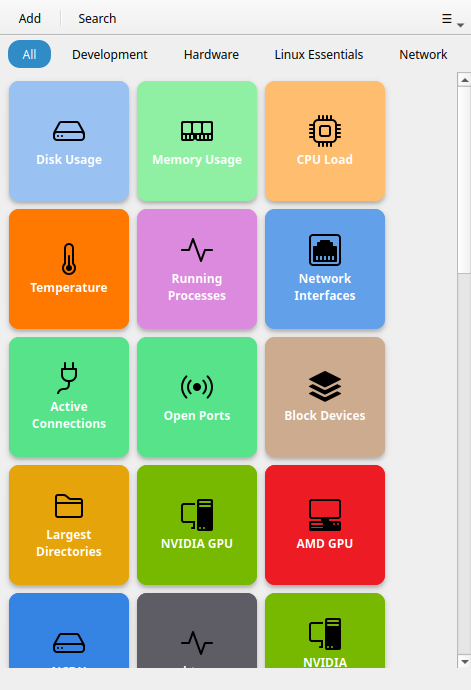
!!! note "The default set matches your operating system" The buttons below are the Linux set. On Windows, RemoteX seeds an equivalent set of PowerShell commands; on macOS, the Unix set. Same idea everywhere — only the underlying command differs:
| Button | Linux / macOS | Windows (PowerShell) |
|--------|---------------|----------------------|
| Disk Usage | `df -h` | `Get-PSDrive` |
| Running Processes | `ps aux` | `Get-Process` |
| Network Interfaces | `ip addr` | `Get-NetIPAddress` |
!!! tip "Suggestions welcome" Got an idea for a useful default button? Open an issue on GitHub — handy cross-distro one-liners are always considered for the next release.
Linux Essentials (11 buttons)
| Button | Command |
|---|---|
| Running Processes | ps aux sorted by CPU |
| System Info | uname -a + lsb_release |
| Logged-in Users | w |
| Last Logins | last |
| Failed Services | systemctl --failed |
| System Journal | journalctl -n 50 |
| Kernel Messages | dmesg |
| Clear Trash | Empties ~/.local/share/Trash |
| System Update | apt / dnf / pacman auto-detected |
| Reboot | systemctl reboot |
| Shutdown | systemctl poweroff |
Hardware (13 buttons)
| Button | Command |
|---|---|
| Disk Usage | df -h |
| Memory Usage | free -h |
| CPU Load | uptime + top snapshot |
| Temperature | sensors (requires lm-sensors) |
| Block Devices | lsblk |
| Largest Directories | du -sh /* |
| NVIDIA GPU | nvidia-smi |
| AMD GPU | lspci + sysfs + sensors |
| NCDU | Interactive disk analyzer (terminal) |
| btop | Interactive resource monitor (terminal) |
| NVIDIA Settings | Launch nvidia-settings GUI |
| Hardware Info | inxi -Fxz (or fallback combo) |
| Disk I/O | iostat / vmstat / /proc/diskstats |
Network (4 buttons)
| Button | Command |
|---|---|
| Network Interfaces | ip addr |
| Active Connections | ss -tp state established |
| Open Ports | ss -tulpn |
| Listening Services | ss -tlnp |
Development (12 buttons)
Git Status · Git Log · Git Diff · Docker PS · Docker PS All · Docker Images · Docker Clean · Tail Syslog · Python Version · Pip Outdated · Node Version · NPM Outdated
Custom buttons
Click + (or Ctrl+N) to create a custom button. See Your first button for a full walkthrough.
!!! info "Free tier limit" The free tier allows 3 custom buttons. Default buttons are not counted toward this limit. Upgrade to Pro for unlimited custom buttons.
Reset to default buttons
If your grid has accumulated test buttons or duplicates and you want a clean slate, open Preferences → Reset Buttons → Reset to default buttons. RemoteX will:
- Ask for confirmation (the action is destructive).
- Copy your current
~/.config/remotex/buttons.tomltobuttons.toml.backup-YYYYMMDD-HHMMSSin the same folder. - Replace the file with your platform's seeded defaults.
- Refresh the grid immediately — no restart required.
!!! tip "Save before, restore after" To preserve any custom buttons you've created before resetting, use Preferences → Buttons & Settings Backup → Export buttons & settings (Pro). After the reset you can re-import that file to merge your customs back in.
Even without an export, the timestamped backup is always created and can be restored manually:

```bash
# Restore the latest backup
cd ~/.config/remotex
cp $(ls -t buttons.toml.backup-* | head -1) buttons.toml
```

Then restart RemoteX to load it.
Grid layout
The grid reflows automatically to the window width — make the window wider or narrower and the columns adjust. Set the tile size in Preferences → Appearance → Button size:
- Button size — Small (80×80) · Medium (120×120) · Large (160×160)
Search
Press the search icon in the header bar (or start typing anywhere) to filter buttons by name in real time.
Keyboard shortcuts
| Shortcut | Action |
|---|---|
Ctrl+N |
Add a new button |
Ctrl+, |
Open Preferences |
Ctrl+? |
Show keyboard shortcuts |
Ctrl+Q |
Quit |