Preferences
On Android
This page describes the computer app. On the phone, the Settings screen holds the language, appearance, button theme and size, command timeout, Confirm before running, which categories are shown, saved variable values and backups. This computer, Desktop Integration, Allow MCP access and License exist only on the computer — the Android app is bought on Google Play and has no license key.
Open Preferences from the hamburger menu or with Ctrl+,.
Settings are saved immediately when you change them — there is no Save button.
General
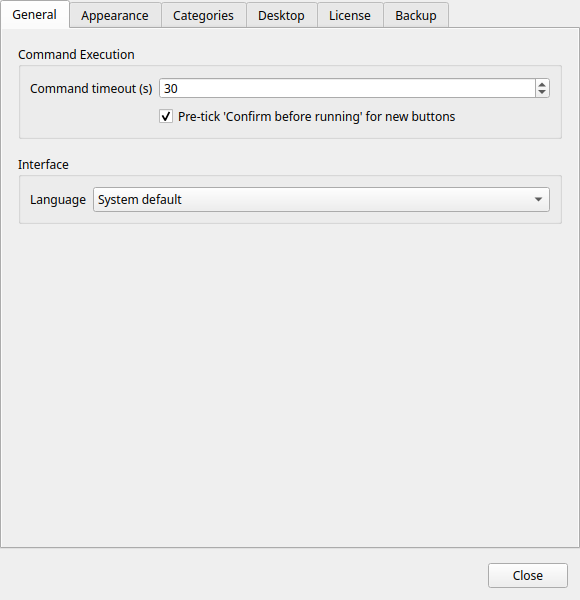
Language
Selects the interface language. Commandeck supports 12 languages:
| Code | Language |
|---|---|
| System | Follow your desktop locale (default) |
| en | English |
| fr | French |
| de | German |
| es | Spanish |
| it | Italian |
| pt | Portuguese |
| ru | Russian |
| ko | Korean |
| ja | Japanese |
| zh | Chinese (Simplified) |
| ar | Arabic |
| hi | Hindi |
Note
A language change takes effect after restarting Commandeck. A toast notification reminds you.
Command timeout
The maximum time (in seconds) to wait for a command to finish before cancelling it. Default: 30 seconds.
Increase this for commands that are expected to take a long time (large file copies, system updates). Decrease it to fail fast on unreachable machines.
Button grid layout
There is no "buttons per row" setting — the grid reflows automatically to fit the window width. Resize the window for more or fewer columns (down to a single column). To change how big the tiles are, use Button size under Button Appearance.
Confirm before running by default
When enabled, the Confirm before running toggle in the Button Editor is pre-checked for every new button you create.
Does not affect existing buttons.
This computer
Linux and macOS. The administrator (sudo) password of your account on this computer. Only local buttons that need administrator rights use it — a Run as other than you, or a command that fails for lack of rights, which Commandeck then runs once more as administrator. Type it and click Save; Remove deletes it. It stays in your system's keychain, never in a config file or a backup.
Without it, those buttons fail with a message saying where to add it; everything else works as before. In Open in terminal mode you still type the password in the terminal window.
Button Appearance
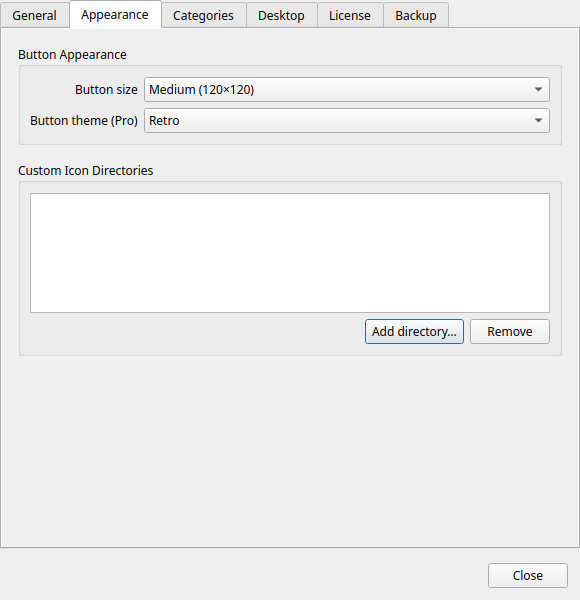
Button size
Sets the size of all button tiles globally.
| Size | Tile dimensions | Icon size |
|---|---|---|
| Small | 80 × 80 px | 20 px |
| Medium | 120 × 120 px | 32 px |
| Large | 160 × 160 px | 48 px |
Button theme
Pro feature
Button themes require Commandeck Pro. On the free tier this is locked to Bold (system default).
Applies a visual style to all button tiles. See Themes for a full description and screenshots of each option.
| Theme | Style |
|---|---|
| Bold | Solid colored tiles with strong contrast (default) |
| Phone | Compact flat tiles, reminiscent of a dial pad |
| Neon | Dark background with glowing accent borders |
| Retro | Terminal-inspired monochrome with scanlines |
Desktop Integration
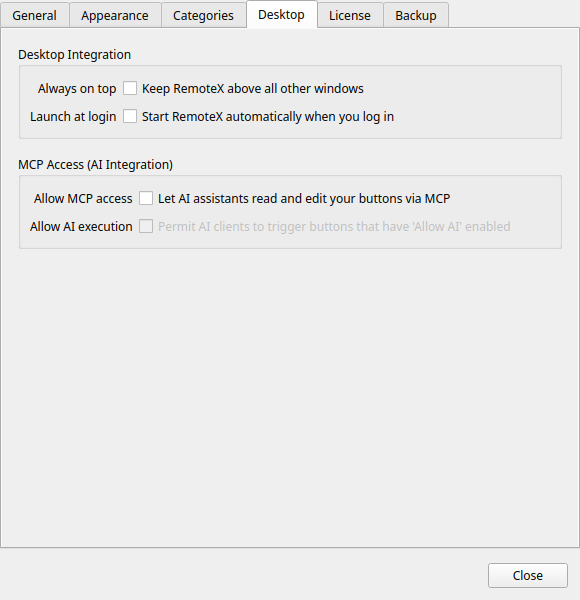
Always on top
When enabled, the Commandeck window floats above all other windows.
- Windows, macOS, and Linux/X11 — works out of the box, no extra dependency.
- Linux/Wayland — the Wayland protocol does not let an application force itself on top, so the option is disabled with an explanation. (Most X11 sessions, including the default on Linux Mint, are unaffected.)
Keeping Commandeck on top on Wayland
Even when the in-app toggle is disabled, you can still pin the window: right-click the window's title bar and choose Always on Top. Your desktop's window manager provides this and is allowed to do it. Alternatively, log in to an X11 / "Xorg" session at the login screen, where Commandeck's own toggle works normally.
This setting is also accessible from the hamburger menu as a quick toggle.
Launch at login
When enabled, Commandeck starts automatically when you log in to your desktop. This writes a .desktop file to ~/.config/autostart/commandeck.desktop.
Disabling it removes the autostart file.
Terminal
Some buttons open a terminal window for interactive tools (like btop or ncdu). Commandeck auto-detects your terminal, but if your distribution ships an unusual one, you can choose it here.
- Automatic (detect) — the default; Commandeck uses the first installed terminal it recognises, and honours the
$TERMINALenvironment variable if set. - (a specific terminal) — the list shows the terminals found installed on your system. You can also type the command of any other terminal.
Allow MCP access
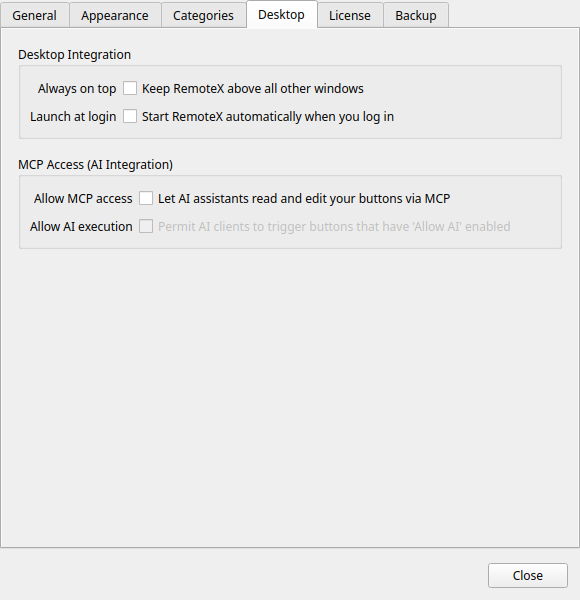
Enables the built-in MCP (Model Context Protocol) server. When active, a compatible AI assistant (Claude Desktop, Cursor, etc.) can read and manage your buttons.
Disabled by default. See AI Integration (MCP) for setup instructions.
Warning
When MCP access is enabled, your AI assistant can create, modify, and delete buttons. Disable this toggle when not in use.
Categories
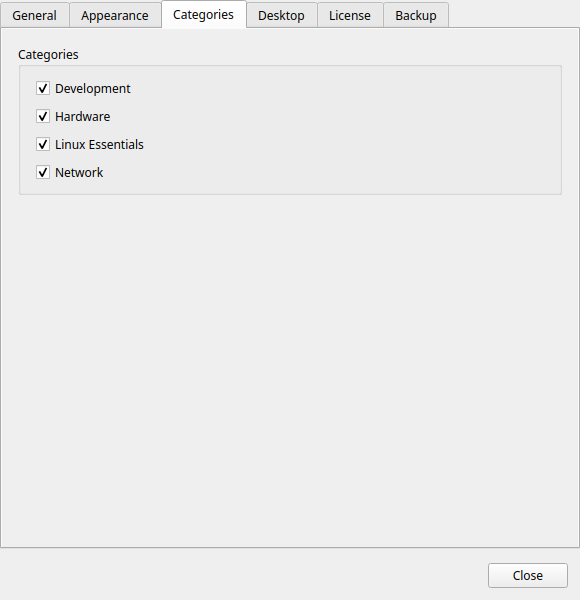
Lists all categories that currently exist in your button configuration. Each row has a toggle:
- Enabled — the category appears in the header-bar category dropdown and its buttons appear in the grid
- Disabled — the category and its buttons are hidden from the grid (but not deleted)
This is the way to restore a category after hiding it with right-click → Hide category.
The list updates automatically as you add or remove categories.
Saved "Run as" (Pro)
Manage them from the hamburger menu → Saved "Run as". Each one combines:
- Profile name — a short descriptive label (e.g.
As www-data in /var/www) - Run as — the target user: current user (no sudo), root, or a custom username
- Working directory — the directory to
cdinto before running the command
A saved "Run as" holds no password: sudo uses the administrator password of the machine card (or This computer above).
Pick one on a button in the Button Editor (Run as → Saved: name). See Saved "Run as".
Pro feature
Saved "Run as" require Commandeck Pro.
License
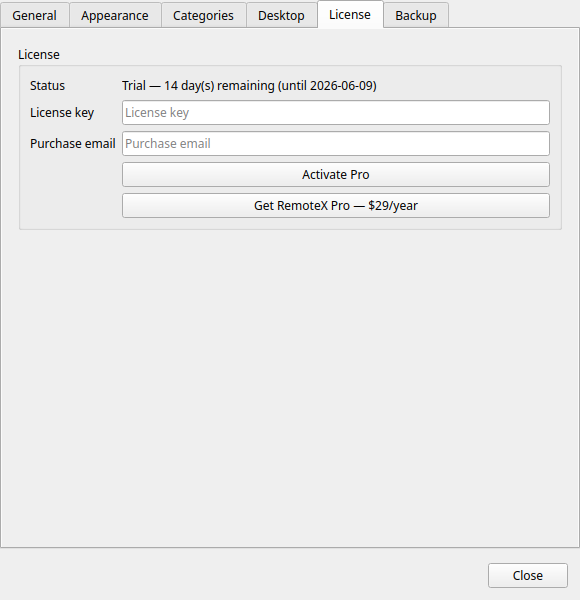
Manages your Commandeck Pro license.
Free edition
In the free edition this tab explains that Pro is a separate download with a 14-day trial, and offers Download Commandeck Pro (the newest Pro build for your system) and a button to buy a license. A key can only be activated in the Pro edition.
Activating
- Purchase a license at commandeck pro page
- Paste your license key in the field
- Click Activate Pro
An internet connection is required for the initial activation.
Active license display
When a valid license is active, this section shows:
- License type — Pro (one-time purchase)
- Activation count — e.g. 1 / 3
- Status — Active
Deactivating
Click Deactivate license to remove the Pro license from this device. Free tier limits apply immediately.
Nothing is deleted. Your buttons stay — local buttons are unlimited on the free tier. Only Pro-only features lock until you reactivate: SSH machines stop running (their buttons remain but can't execute remotely), custom themes revert to the default, and backup/restore and the MCP server become unavailable.