Check Disk Space on Your NAS in One Click
A full disk is what quietly breaks a home server: downloads stop, backups fail, your media server won't add new files, databases get corrupted. The fix is to check disk space before it fills up — but who wants to SSH into the NAS and type df -h every week?
Commandeck makes it a button. One click, and you see exactly how full each drive is, in a window on your desktop.
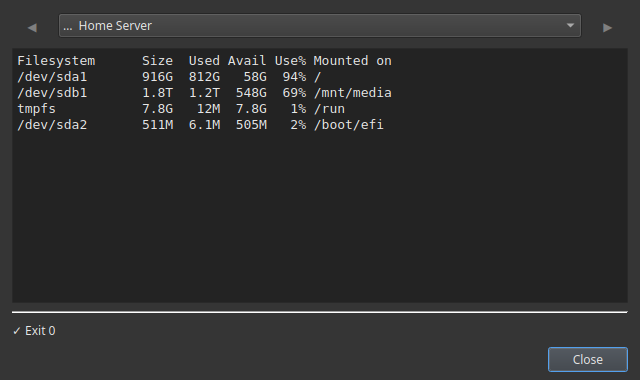
The button
Right-click the grid → New Button and fill in:
| Field | Value |
|---|---|
| Label | Disk Space |
| Command | df -h |
| Execution mode | Show output |
| Icon | drive-harddisk-symbolic |
| Tooltip | How full is each drive |
Click it and you get a clear table: each drive, its size, how much is used, and the percentage full. The numbers you care about are the Use% column — anything near 90% needs attention.
More disk buttons worth having
| Label | Command | Shows you |
|---|---|---|
Biggest folders |
du -h -d 1 / \| sort -hr \| head -20 |
What's eating the space |
Biggest folders (home) |
du -h -d 1 ~ \| sort -hr \| head -20 |
Same, inside your home folder |
Docker disk use |
docker system df |
How much Docker is using |
Free up Docker space |
docker system prune -f |
Reclaims unused images/layers |
The Biggest folders button is the natural follow-up: when Disk Space shows a drive is nearly full, this one tells you what to clean up.
Checking a NAS or server (not just this PC)
Your NAS is a separate machine, so the real win is running these buttons on the NAS over SSH while you sit at your Windows or Mac desktop. Add the NAS once, point the buttons at it, and "check the NAS disk" becomes a single click from across the house.
Remote checks are Pro
Reaching another machine over SSH is Commandeck Pro — $29 one-time, lifetime, 14-day free trial (no card). Checking this computer's disk works free.
Make it a habit
Disk space is the kind of thing you only think about once it's too late. With a button sitting in your grid, glancing at it takes two seconds — so you actually do it, and you catch a filling drive before it takes the server down.
- No terminal, no remembering
df -h— it's a button. - Read-only and safe — these buttons only look; they change nothing.
- Private — no account, no cloud, no telemetry.
Related: the Home Server Management guide sets up disk, update and restart buttons together. New here? See the Beginner Guide.