SSH Machines
Pro feature
SSH machines require Commandeck Pro.
Commandeck connects to remote servers over SSH. You can authenticate either with an SSH key (recommended) or with a password. When you choose password authentication, the password is kept in your operating system's secure keychain — never in plain text in a config file, and never included in a backup.
Managing machines
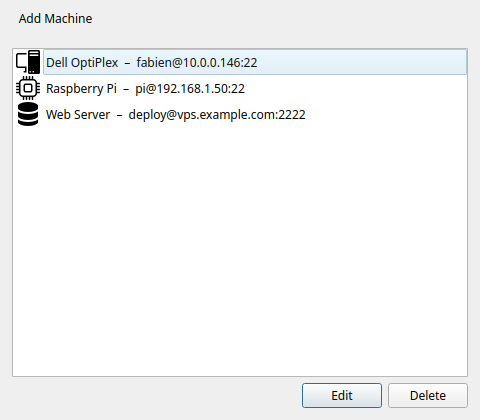
Open Menu → Manage Machines to see the full machine list. From here you can add, edit, and delete machines.
Note
The Manage Machines menu item is locked on the free tier.
Detecting machines on the network
Instead of typing an IP address by hand, click Detect in the Manage Machines dialog. Commandeck scans your local network for devices that accept SSH connections (port 22) and lists the ones it finds.
- Commandeck fills in the Subnet of your network automatically (for example
192.168.1.). If your machines are on a different range — a VPN, or a router that uses192.168.0.— edit this field, then click Scan. - Pick a device from the results and click Add This Machine. The Add Machine form opens with the IP address and name already filled in — you just set the SSH user and key, then Test and Save.
Machines you have already added are hidden from the results, so only new devices are offered.
Make device names show up
Commandeck tries to discover each device's name automatically, in this order: reverse DNS, then mDNS / Bonjour (the .local names that Macs, Raspberry Pi / avahi and most NAS announce), then NetBIOS (Windows and Samba). Devices that don't announce themselves — typically headless servers and Docker containers — show only their IP address.
To get a name for those too, your router/DNS has to answer reverse lookups for your local network. On OPNsense / pfSense with Unbound, enable Register DHCP leases and Register DHCP static mappings. If a DNS filter such as AdGuard Home or Pi-hole sits in front of Unbound, point its private reverse DNS servers at the Unbound resolver so private PTR lookups are answered. Verify from a terminal with getent hosts <ip> — once it returns the name, re-scan and Commandeck shows it too.
Note
Detection finds devices that have SSH (port 22) open. A device protected by a firewall may not appear even if it runs SSH.
Add Machine dialog
Click + in the Machines dialog to open the Add Machine form.
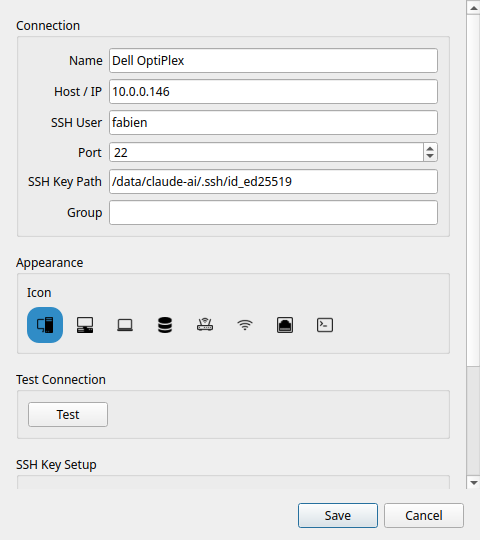
Name
A display name used only inside Commandeck. Choose something descriptive — you will see this name in button editors and the machine picker.
Examples: Plex Server, Pi-hole, Work VPS, NAS
Host / IP
The IP address or hostname of the remote machine. This must be reachable from your computer over the network.
Examples: 192.168.1.50, plex.local, myserver.example.com
SSH User
The username to log in with on the remote machine.
Examples: pi, ubuntu, admin, yourname
Port
The SSH port. Default is 22. Change this only if your server runs SSH on a non-standard port.
Authentication
Choose how Commandeck logs in to this machine:
- SSH Key (recommended) — uses a private key file (see SSH Key Path below). Nothing to type or store once it is set up.
- Password — connect with a password that Commandeck stores in your OS keychain (see SSH Password below).
SSH keys are the more secure and convenient option — once configured, you never type a password again. Password authentication is there for servers where you can't install a key.
SSH Key Path
The path to the private key file used for authentication.
Examples: ~/.ssh/id_rsa, ~/.ssh/id_ed25519, ~/.ssh/myserver_key
If the field is empty, Commandeck falls back to your SSH agent or the default key (~/.ssh/id_rsa).
Note
Keys with a passphrase require a running ssh-agent with the key loaded. If the key is locked, Commandeck shows a clear error — it will not prompt for the passphrase interactively.
SSH Password
Only used when Authentication is set to Password. Enter the remote user's login password; Commandeck saves it and uses it for every connection to this machine. Use Test to confirm the password works before saving.
Where your password is stored
Stored passwords live in your operating system's secure keychain — GNOME Keyring / KWallet on Linux, Keychain on macOS, Credential Manager on Windows — encrypted at rest. They are never written to Commandeck's config files and never included in a backup.
If no system keychain is available (for example a minimal or headless Linux box), Commandeck falls back to a local obfuscated file (.secrets, readable only by your user account) and warns you that this is not strong encryption. Prefer an SSH key in that case.
Administrator password
Some buttons need administrator rights on the machine (restarting a service, installing updates, powering off). sudo then asks for the password of the account Commandeck connects with — so that password belongs to this machine card, never to a button.
- Password login: leave Also the administrator (sudo) password ticked (the default) — the login password answers
sudotoo. Untick it only if that account's administrator password is different. - SSH key login: type the account's password in Admin password. It is optional: leave it empty if the machine never asks for one (logged in as
root, orsudoconfigured without a password).
Stored like the SSH password: in your system's keychain, never in a config file or a backup. When a button fails for lack of administrator rights, Commandeck runs it once more as administrator with this password. If none is saved, the error says so and names this machine card.
Two accounts on one computer
A machine card is one address + one account. To log in to the same computer as two different users, create two cards (for example Mini (fabien) and Mini (claude-ai)). To run just a few buttons as another user, keep one card and use a saved "Run as" instead — it uses this card's administrator password.
Icon
A visual icon shown next to the machine name in the picker dialog and the machine list. Six icons are available: desktop, laptop, server, router, Wi-Fi access point, and a generic device.
SSH key setup
If you don't have an SSH key pair yet, Commandeck can generate one for you and copy the public key to the server:
- Click Generate SSH key — Commandeck creates an Ed25519 key pair in
~/.ssh/ - Click Copy key to server — enter your password once (it is not stored). This runs
ssh-copy-idinternally - Future connections use the key automatically, no password needed
On Android
The Android app cannot create a key. Create it on your computer as above, then, in the machine card on the phone, paste the private key or tap Choose key file… — or connect with a password instead.
Testing the connection
Click Test in the machine dialog. Commandeck runs echo commandeck-ok on the remote host. A green message confirms the connection works. If it fails, the full error from SSH is shown.
A second line tells you about administrator rights: yes (connected as root), yes without a password, yes with the saved password, a password is needed and none is saved, the saved password was refused, this account may not administer the machine, or sudo is not installed. The button editor uses this answer to warn you before a button that needs administrator rights would fail.
Run the test after adding a machine and whenever you change credentials.
Assigning machines to a button
In the Button Editor, the Target machines section shows your machines as toggle switches. Enable the machines you want.
The machine picker
When a button has two or more targets enabled, clicking it opens the machine picker dialog.
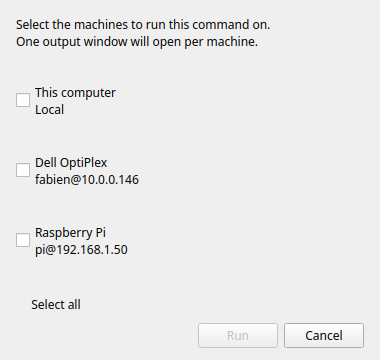
The picker lists each enabled target. Select one and click Run. The command runs on the selected machine only.
Tip
If you want to run on all machines at once without picking, you can do so by creating separate buttons per machine, or by using multi-select to run them in sequence.
Output modes over SSH
All three execution modes work over SSH:
| Mode | Behaviour |
|---|---|
| Silent | Result shown as a toast notification |
| Show output | Remote stdout/stderr displayed in a dialog after the command finishes |
| Open in terminal | Commandeck generates an ssh -t command and opens it in your terminal emulator — full interactive session |
On Android
On Android, Open in terminal opens a read-only live view in the app: you watch the
program as it runs, but you cannot type into it. A program driven by keys (ncdu, a shell)
needs a computer.