Backup & Restore
Pro feature
Config backup and restore requires Commandeck Pro.
Commandeck provides three separate export formats — buttons, machines and saved variable values — intentionally kept apart for security reasons.
Access both from the Preferences → Backup tab.
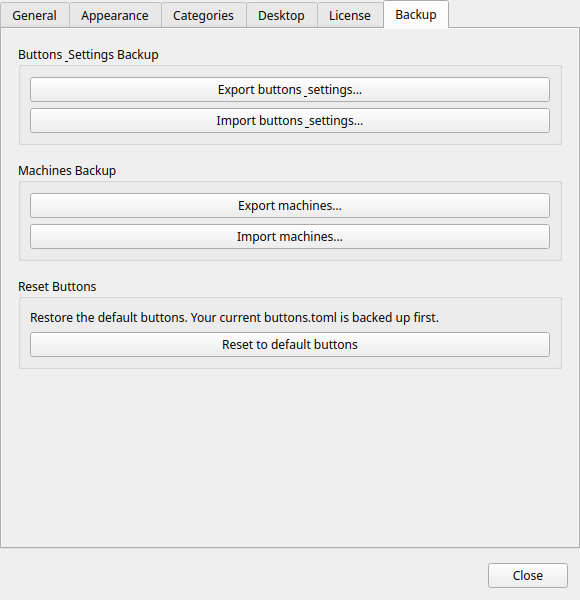
Buttons backup — .cdbackup
This archive contains only your buttons:
buttons.toml— all your buttons and their configuration
It does not contain your machines, your Pro license, or your Preferences settings — importing a .cdbackup only ever changes your buttons. (Machines have their own .cdmachines file, below.)
When to use it
- Before a major change (deleting many buttons, reorganising categories)
- When migrating Commandeck to a new computer
- As a periodic snapshot of your button library
Exporting
Click Export buttons. A file picker opens. Choose a location and save the .cdbackup file.
Importing
Click Import buttons and select a .cdbackup file. Commandeck asks how to import:
- Replace all — remove your current buttons and use the ones from the file.
- Add new — keep your current buttons and only add the ones from the file you don't already have (matched by command, so re-importing the same file adds nothing).
Either way, your buttons are backed up first, so the import is undoable — see Restore previous buttons below.
Note
On Replace all, the default buttons for this platform that are missing from the file are re-added automatically, so you never lose your platform's defaults.
Undoing an import or reset
Menu → Restore previous buttons brings back your buttons from the most recent automatic backup (made whenever you import or reset to defaults).
Works across platforms
A .cdbackup exported on Linux, macOS, Windows or Android imports on any other — the format is identical everywhere.
What is not automatically portable is the command text inside each button: a command written for Linux (e.g. sudo apt upgrade) won't run on Windows, and vice-versa. So a backup is directly reusable when the target OS is the same. To work across different OSes:
- SSH buttons just work — the command runs on the remote machine, so it only depends on that machine's OS, not the device you trigger it from.
- For local buttons, edit the command for the new OS, or rely on the platform defaults that are re-seeded on import.
How the OS tag affects import & machines
Each button carries the OS its command is written for (Cross-platform / Linux / macOS / Windows — set in the button editor), and each machine carries its host OS (in the machine editor). Two things use it:
- Import keeps OS variants side by side. A button counts as "already present" only when both its command and its OS match one you have. So importing a Windows button set onto a Linux install adds them rather than clashing with your Linux buttons — you end up with both. Re-importing the same set still adds nothing.
- Propagation pairs only compatible machines. When you add a machine to all your buttons, it is attached only to buttons whose OS matches the machine (or that are Cross-platform). A Windows machine never lands on a Linux-command button. (Linux and macOS are treated as compatible, since they share the same default command set.)
A button left as Cross-platform (the default for buttons you create) pairs with any machine — tag it Linux/macOS/Windows only when its command is OS-specific.
Machines backup — .cdmachines
This archive contains:
machines.toml— all SSH machine definitions (name, host, user, port, key path, icon)
What is NOT included
SSH private keys are never exported. The archive only stores the path to the key file (~/.ssh/id_ed25519), not the key itself.
Warning
The .cdmachines file contains hostnames, IP addresses, SSH usernames, and port numbers. Treat it like any network configuration file — do not share it publicly or store it in an unencrypted public location.
When to use it
- When setting up Commandeck on a second computer (you still need to copy the SSH keys separately)
- As a record of your server infrastructure configuration
Exporting
Click Export Machines. Choose a location and save the .cdmachines file.
Importing
Click Import Machines. Select a .cdmachines file. Machines are merged with any existing machines. Duplicates (same host + user combination) are skipped.
Variables backup — .cdvariables
This file contains your saved variable values — the reusable answers for {{variables}} you manage from Menu → Variable Values (for example, a list of your container names). It does not contain buttons or machines.
Exporting
Click Export variables. Choose a location and save the .cdvariables file.
Importing
Click Import variables and select a .cdvariables file. Saved values are merged into yours — any value you don't already have for a variable is added.
Restoring on a new computer
Full migration checklist:
- Install Commandeck on the new machine
- Copy your SSH private keys to
~/.ssh/on the new machine (usescpor a USB drive — keep them secure) - Activate your Pro license in Preferences
- Import the
.cdbackupfile to restore your buttons - Import the
.cdmachinesfile to restore machine definitions - Import the
.cdvariablesfile to restore your saved variable values - Test each machine connection from Menu → Manage Machines → (select machine) → Test