Activating your license
Welcome to Commandeck Pro! This guide walks you through activating your license for the first time.
What you'll need
- Your license key (sent in your purchase email from LemonSqueezy)
- The email address you used when buying
- An internet connection (required for the first activation only)
Download and install
Your purchase email from LemonSqueezy has a Files link and a download button. You can also grab the newest build any time from the releases page — Linux, macOS and Windows are all there. Pick the file for your system and follow the matching tab below.
Download Commandeck-Pro-…-x86_64.AppImage (or the -ARM64 file on a Raspberry Pi or other ARM machine).
The easy way — no terminal: right-click the downloaded file → Properties → Permissions tab → tick "Allow executing file as program" (some desktops label it "Is executable"). Close the window, then double-click the file to launch Commandeck.
Prefer the terminal? The same thing in one line:
chmod +x Commandeck-Pro-*.AppImage && ./Commandeck-Pro-*.AppImage
If it won't start
The AppImage is self-contained — Python, Qt and every SSH library (Paramiko,
cryptography…) are bundled, so there's no pip install to do. If your
distribution reports a missing Qt platform plugin, install libxcb-cursor0:
sudo apt install libxcb-cursor0     # Ubuntu / Mint / Debian
sudo dnf install xcb-util-cursor    # Fedora
Open the downloaded .dmg, then drag the Commandeck icon onto the Applications folder shown beside it.
On the first launch only, open Commandeck from Applications with a right-click → Open → Open. This clears the one-time "unidentified developer" warning macOS shows for apps installed outside the App Store. After that, launch it normally.
Run the downloaded .exe installer and follow the prompts.
If Windows SmartScreen shows a blue "Windows protected your PC" box, click More info → Run anyway. It appears for brand-new apps Microsoft hasn't yet seen downloaded many times — expected for a fresh release.
Step-by-step activation
-
Open Commandeck — make sure you're running the Pro build, not the Free build. (What's the difference?)
-
Open Preferences with
Ctrl + ,or via the hamburger menu → Preferences. -
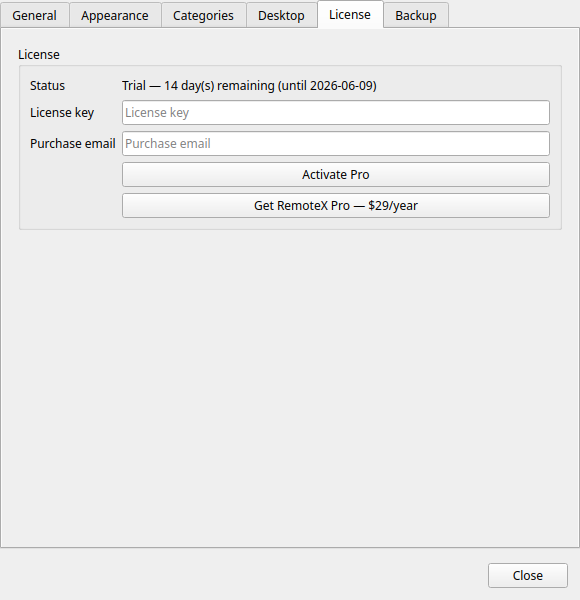
Scroll to the License section.
-
Paste your license key in the License key field.
-
Enter the email you used at purchase in the Email field.
Email must match exactly
We compare what you type against the email LemonSqueezy has on file for the purchase. If it doesn't match, activation is refused — no slot is consumed.
-
Click Activate Pro.
-
Within a few seconds, the dialog refreshes and shows:
- Your license type
- Your activation count (e.g. 1 / 3)
That's it — every Pro feature is now unlocked. SSH machines, multi-machine buttons, themes, backup, MCP server, all available.
What happens next
| When | What happens |
|---|---|
| Right after activation | All Pro features unlock immediately |
| About once a month, at startup | Commandeck quietly confirms your license is still active. Nothing to do — and being offline never locks you out. |
Your data is never at risk. Buttons, machines, settings — all preserved regardless of license state.
Troubleshooting
"This license key is registered to a different email."
The email you typed doesn't match the one on the LemonSqueezy purchase. Double-check the receipt email you got from LemonSqueezy and use that exact address (case doesn't matter, but typos do).
"You have reached the maximum of 3 activations."
You've used all 3 device slots for this license. Open Commandeck on one of your active devices, go to Preferences → License → Deactivate, then come back and activate here.
Lost access to a device you activated (lost laptop, OS reinstalled without deactivating)? Email support and we'll sort it out with you.
See the full License & Devices guide for every scenario.
"Network error — could not reach the license server."
The first activation requires an internet connection (we check the key against LemonSqueezy). Make sure Commandeck can reach api.lemonsqueezy.com — corporate proxies and strict firewalls may block it.
After the first activation, Commandeck works offline indefinitely — being disconnected never locks you out. It only re-checks your license about once a month, on startup, and if that check can't reach the internet it's simply skipped until next time.
One exception, once: a license activated with a version older than 2.4.4 must be confirmed online the first time you open 2.4.4 or later. Open Commandeck once while connected after updating; from then on, offline is fine again.
The License tab says "This is the free edition of Commandeck"
You're running the Free build. It contains no Pro code, so a license key has nothing to unlock there. Click Download Commandeck Pro in that tab — it gets the newest Pro build for your system — and run it instead. Your buttons, machines and settings will be picked up automatically (same config directory). About in the ☰ menu also tells you which edition you're running.
"Your license needs re-activation on this device"
Commandeck no longer recognises this device's activation. It happens when:
- the license file was copied from another computer (a license is tied to the device it was activated on),
- the operating system was reinstalled, or the computer replaced,
- this device's slot was freed from another device, or LemonSqueezy no longer knows it.
Your key is kept and already filled in: click Activate Pro while connected to the internet. On a new device this uses one of your 3 slots — see License & Devices.
Where to go from here
- Add your first SSH machine — the Pro feature most people start with
- Create a multi-machine button — run one command on a fleet
- License & Devices — everything about the 3-device limit, OS reinstalls, migrations
- Refund policy — the 14-day guarantee, and what it covers
Need anything else? Email support — we read every message.