Main Window
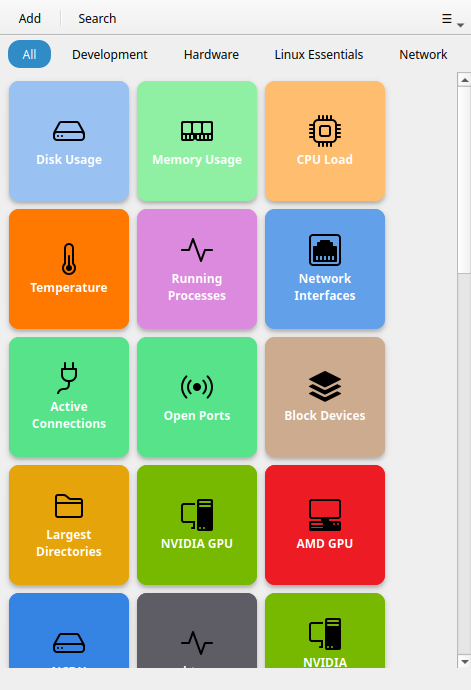
The main window is divided into three zones: the header bar (toolbar), the search bar, and the button grid.
Header bar
The header bar is always visible. From left to right:
+ (Add button)
Opens the Button Editor to create a new button. Keyboard shortcut: Ctrl+N.
Note
Custom buttons are unlimited on every tier. Commandeck Pro adds SSH machines, themes and AI integration.
Search icon
Toggles the search bar. You can also start typing anywhere in the window to open it automatically.
Hamburger menu (≡)
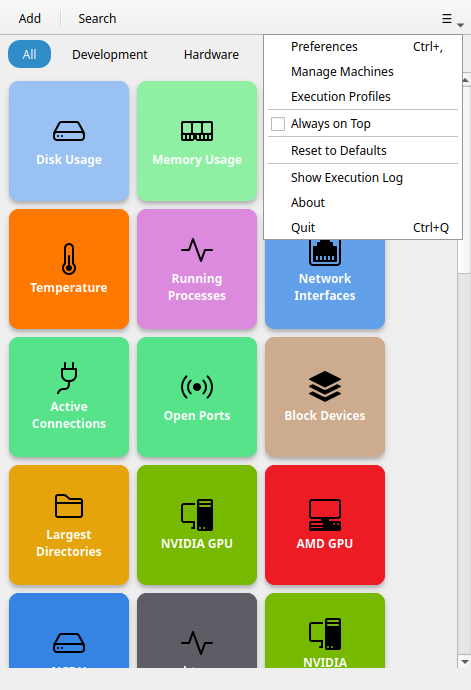
Opens the application menu:
- Refresh Buttons (
F5) — reloads the grid from disk without restarting; handy after an AI (MCP) or another process changes your buttons - Preferences — opens the preferences dialog (
Ctrl+,) - Manage Machines — opens the machine list dialog (Pro only)
- Saved "Run as" — opens the list of saved "Run as" (Pro only)
- Always on Top — toggles whether the window floats above all other windows (stateful toggle, checked when active)
- Reset to Defaults — backs up your buttons and re-seeds the default set
- Show Execution Log — opens the diagnostics log that traces each click
- About — version and license info
- Quit — closes Commandeck (
Ctrl+Q)
Category filter
When at least one button has a category, a category dropdown appears in the header bar, next to the search icon. (It is hidden when no button has a category.)
- All — the default; shows every button regardless of category.
- (category name) — pick a category to show only its buttons.
The dropdown keeps the same compact size no matter how many categories you have, so the window can still shrink down to a single column of buttons.
To hide a category entirely — so it appears in neither the dropdown nor the grid — go to Preferences → Categories and toggle it off. The buttons are not deleted.
Search bar
The search bar slides in below the header bar when activated. It filters buttons in real time by their label name. The filter applies on top of any active category filter.
Press Escape or click the search icon again to close the search bar and clear the filter.
Button grid
The main content area is a scrollable grid of button tiles. There is no "columns" setting — the grid reflows automatically to fit the window width. Make the window wider for more columns, or narrower for fewer (down to a single column). To change the tile size, use Preferences → Button Appearance → Button size.
Drag and drop any button to reorder it within the grid.
Button tiles
Each tile displays:
- An icon (top or center, depending on size)
- A label (the button name)
The tile background and label color can be customised per button.
Left-click a tile to run the command. If the button has Confirm before running enabled, a dialog asks for confirmation first. If the button targets multiple machines, a machine picker appears.
Right-click a tile to open the context menu:
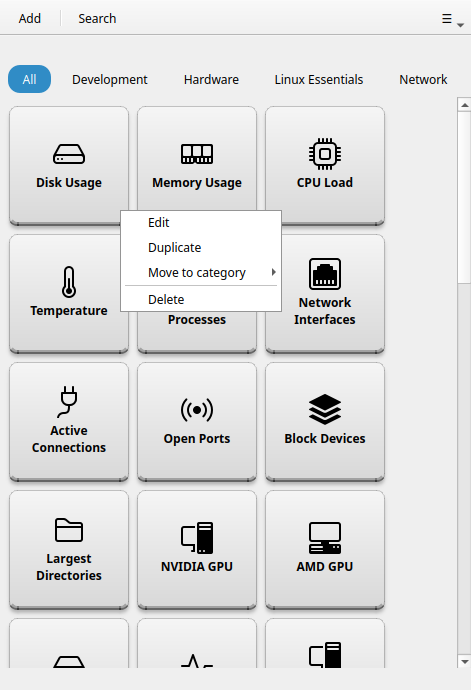
- Edit — opens the button editor for this button
- Duplicate — creates a copy of the button
- Move to category — type or pick a category name to reassign
- Delete — permanently removes the button (confirmation required)
Note
Default buttons are fully editable by everyone — rename them, recolor them, change their command or delete them, on the free tier too.
Selecting several buttons at once
There is no separate "select mode" button. To work on several buttons at once:
- Ctrl+click tiles to add or remove them from the selection, or
- Drag a box across the grid (click an empty area and drag) to select every tile it touches.
As soon as one button is selected, an action bar slides up at the bottom of the window showing how many are selected, with bulk actions: Change category, Change machine, Delete, and ✕ to clear the selection.
Pro feature
Selecting several buttons at once requires Commandeck Pro.
Toast notifications
After a command runs, a small toast notification slides up from the bottom of the window:
- Success toast — command completed successfully
- Failure toast — command failed (exit code non-zero)
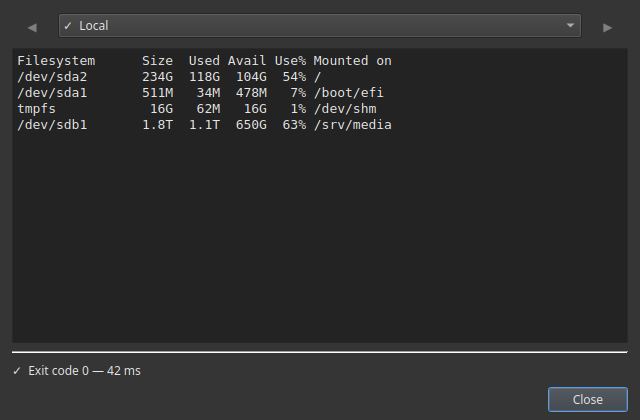
For commands with Show output mode, or for any command that fails, an output dialog opens automatically with the full stdout and stderr.
Empty state
If no buttons match the current search or category filter, an empty state illustration is shown with a hint. This is not an error — it just means all buttons are filtered out. Click All or clear the search to see your buttons again.
If you have no buttons at all (unusual after a fresh install), the empty state shows a prompt to add your first button.