Multi-select
Computer only
Multi-select is part of the computer app. The Android app does not have it: there, buttons are edited one at a time.
Pro feature
Multi-select requires Commandeck Pro.
Multi-select lets you perform bulk operations on several buttons at once — reassigning categories, changing machines, or deleting a group.
When to use multi-select
- You migrated to a new server and need to reassign 10 buttons to it
- You want to move a whole set of buttons to a different category
- You created a batch of temporary buttons and want to delete them all at once
- You duplicated several buttons and need to clean up quickly
Starting a selection
There is no separate "select mode" to switch on. Just start selecting:
- Ctrl+click a button tile to add it to — or remove it from — the selection (a plain click still runs the command as usual)
- Drag a box over an empty area of the grid (see Rubber-band selection) to select every tile it touches
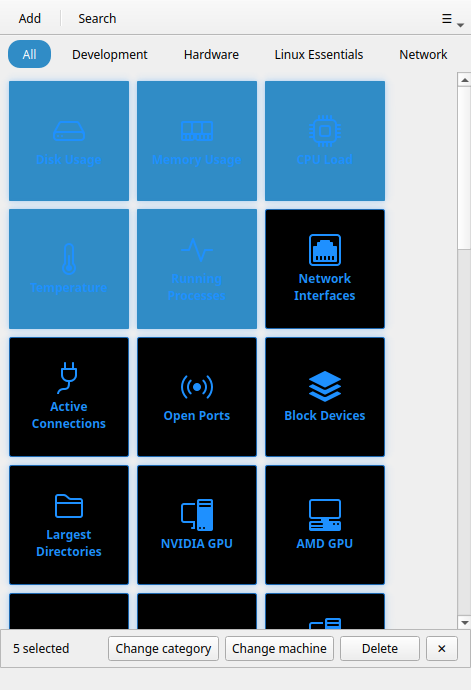
As soon as one button is selected, an action bar slides up at the bottom of the window, showing how many buttons are selected and the available bulk actions.
Selecting buttons
Ctrl+click to toggle
Ctrl+click any button tile to add it to the selection; Ctrl+click it again to remove it. Selected tiles are highlighted in blue. (A plain left-click — without Ctrl — runs the button's command.)
Rubber-band selection
Click and drag on an empty area of the grid (not on a button) to draw a selection rectangle. All buttons the rectangle overlaps are added to the current selection.
Tip
Start the drag gesture from the margins around the button grid — the space between tiles or the padding around the edges. Starting directly on a button toggles that button instead of drawing a rectangle.
Combining both methods
You can mix Ctrl+click and rubber-band freely. Ctrl+click individual buttons first, then rubber-band to add a group, then Ctrl+click to deselect specific ones.
Group actions
The action bar at the bottom shows available operations once at least one button is selected.
Delete
Permanently removes all selected buttons. A confirmation dialog shows the count ("Delete 5 buttons?"). This cannot be undone.
Default buttons (Linux Essentials, Development) can be deleted even on the free tier.
Category
Assigns all selected buttons to a category. A small input dialog asks for the category name:
- Type a new name to create a new category
- Type an existing category name to move the buttons into it
- Leave blank and confirm to remove the category assignment (buttons become uncategorised)
Machine
Assigns all selected buttons to an SSH machine. A picker lists your configured machines plus Local:
- Select a machine → all selected buttons are updated to target that machine only (their previous machine targets are replaced)
- Select Local → all selected buttons are set to local execution
Note
The Machine action replaces the target on each button, not appends. If you want multi-machine buttons, edit them individually in the Button Editor.
Clearing the selection
Click the ✕ on the action bar to clear the current selection. The bar hides itself and the grid returns to normal. (A plain click on any button runs its command at any time — selecting buttons never gets in the way of normal use.)